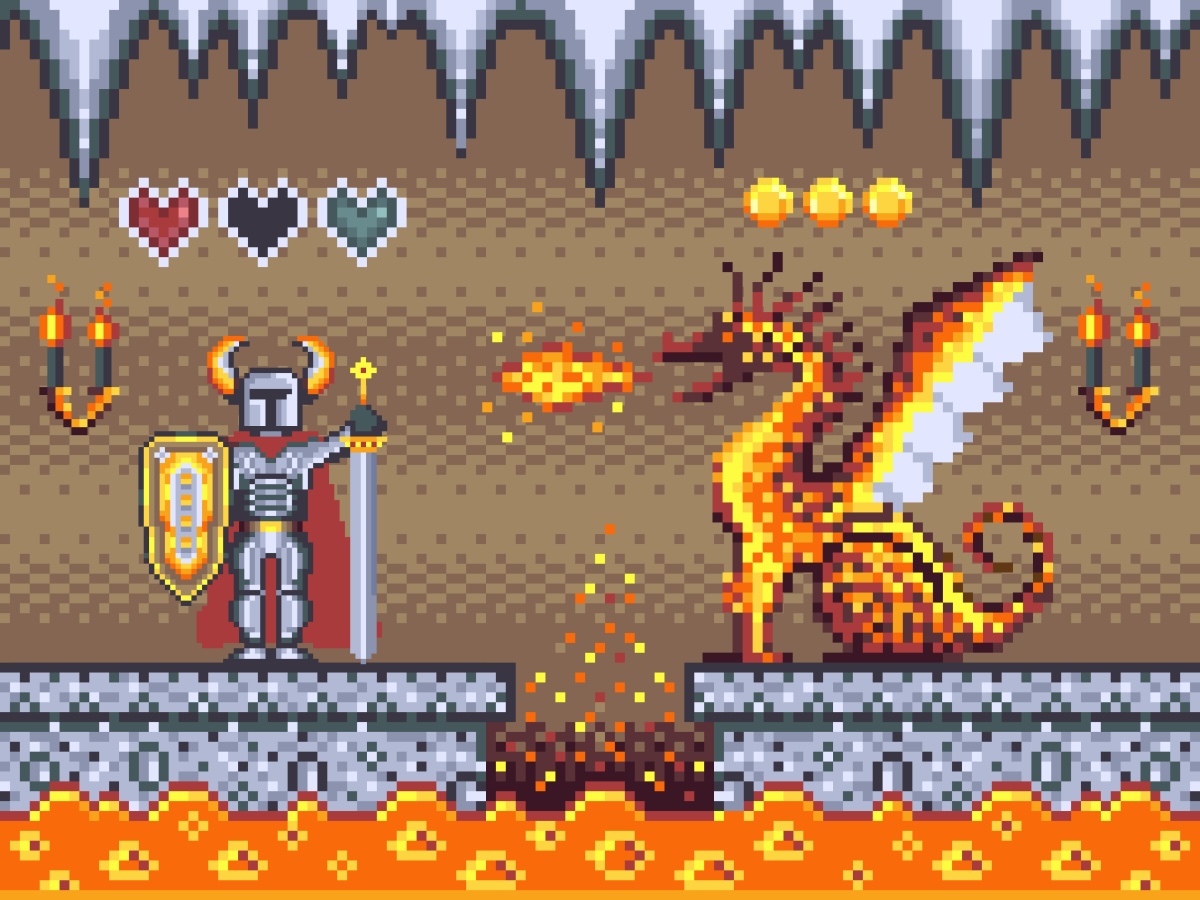
Pixel art has an enduring cultural magic. From indie icons like Celeste and Stardew Valley to coin-op arcade classics, the aesthetic is timeless, charming, and performant.
Naturally, one of the first experiments solo developers attempt with generative AI is typing:
"Create a 16x16 pixel art walk cycle for an adventurer knight."
And almost invariably, the raw output looks terrible:
- Mixels Everywhere: Giant 4-pixel chunks sitting right next to tiny 1-pixel sub-lines.
- Anti-Aliased Slime: Soft, blurry pastel gradients containing 600 distinct micro-shades instead of crisp 8-bit color bands.
- Style Disconnect: The player sprite looks like an SNES character, while your enemies look like 1-bit Game Boy shapes.
To build visually cohesive retro experiences like Color by Number and our built-in suite at Pixify Studio, we developed a disciplined pipeline that forces AI imagery to obey strict retro hardware rules.
Here is the step-by-step engineering pipeline to create razor-sharp, animation-ready pixel game sprites.
1. The "Mixel" Cardinal Sin (And How to Kill It)
A mixel (mixed pixel resolution) occurs when elements on screen render at conflicting pixel densities. If your player character is drawn on a $16 \times 16$ grid, but an item or weapon is rotated smoothly at fractional angles, the nostalgic illusion instantly shatters.
┌─────────────────────────────────────────────────────────┐
│                  THE MIXEL CATASTROPHE                  │
│                                                         │
│     [■■■]  <-- 4px Chunky Sprite Pixel                  │
│     [■]    <-- 1px Smooth Anti-Aliased Outline          │
│     Result: Looks like an emulator glitch, not retro    │
└─────────────────────────────────────────────────────────┘
The Canvas Rendering Fix
Never render sprites at high resolution with smooth scaling. Always draw your retro game to an internal low-resolution offscreen canvas (e.g., $320 \times 180$ or $256 \times 240$), and scale the display canvas using nearest-neighbor CSS:
canvas {
  image-rendering: pixelated; /* Chrome, Edge, Safari */
  image-rendering: crisp-edges; /* Firefox */
}
In your JavaScript canvas setup, disable image smoothing:
const ctx = canvas.getContext('2d');
ctx.imageSmoothingEnabled = false;
2. Palette Clamping: The Secret to Cohesive Art Direction
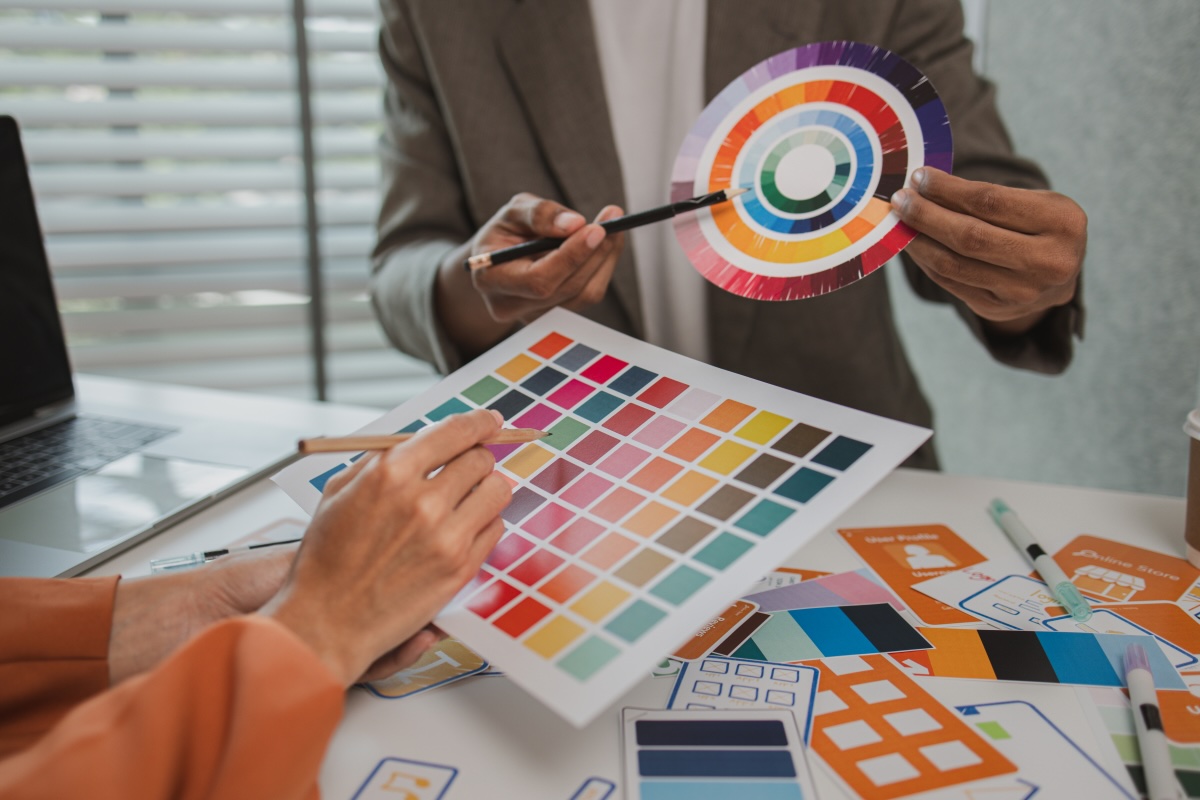
Retro consoles like the NES or Game Boy looked visually harmonious because they were physically constrained to 4 to 16 hardware color registers. Modern AI image models output 16 million colors per image, which gives sprites that uncanny "greasy gradient" look.
To fix this, we run all AI-generated sprites through a Euclidean Color Quantizer that snaps every pixel to an authentic retro palette (such as the Endesga 32, PICO-8, or Sweetie 16 palettes available in our Color Palette Generator).
Automated Client-Side Color Clamping Script
You can drop this helper into your preprocessing tools or canvas pipeline:
// Snap pixel data to a restricted retro palette
function quantizeImageToPalette(ctx, width, height, hexPalette) {
  const imgData = ctx.getImageData(0, 0, width, height);
  const data = imgData.data;

  // Convert hex strings to RGB tuples
  const rgbPalette = hexPalette.map(hex => {
    const num = parseInt(hex.replace('#', ''), 16);
    return [(num >> 16) & 255, (num >> 8) & 255, num & 255];
  });

  for (let i = 0; i < data.length; i += 4) {
    const r = data[i];
    const g = data[i + 1];
    const b = data[i + 2];
    const a = data[i + 3];

    if (a < 50) {
      data[i + 3] = 0; // Pure transparency
      continue;
    }

    // Find closest palette color via Euclidean distance
    let minDistance = Infinity;
    let closestColor = rgbPalette[0];

    for (const [pr, pg, pb] of rgbPalette) {
      const dist = (r - pr) ** 2 + (g - pg) ** 2 + (b - pb) ** 2;
      if (dist < minDistance) {
        minDistance = dist;
        closestColor = [pr, pg, pb];
      }
    }

    data[i] = closestColor[0];
    data[i + 1] = closestColor[1];
    data[i + 2] = closestColor[2];
    data[i + 3] = 255; // Solid opacity
  }

  ctx.putImageData(imgData, 0, 0);
}
The moment you run this over an AI image, the fuzzy anti-aliased blur disappears, replaced by authentic, crisp retro pixel art.
3. The 4-Step Prompting Formula for Clean Sprite Atlases
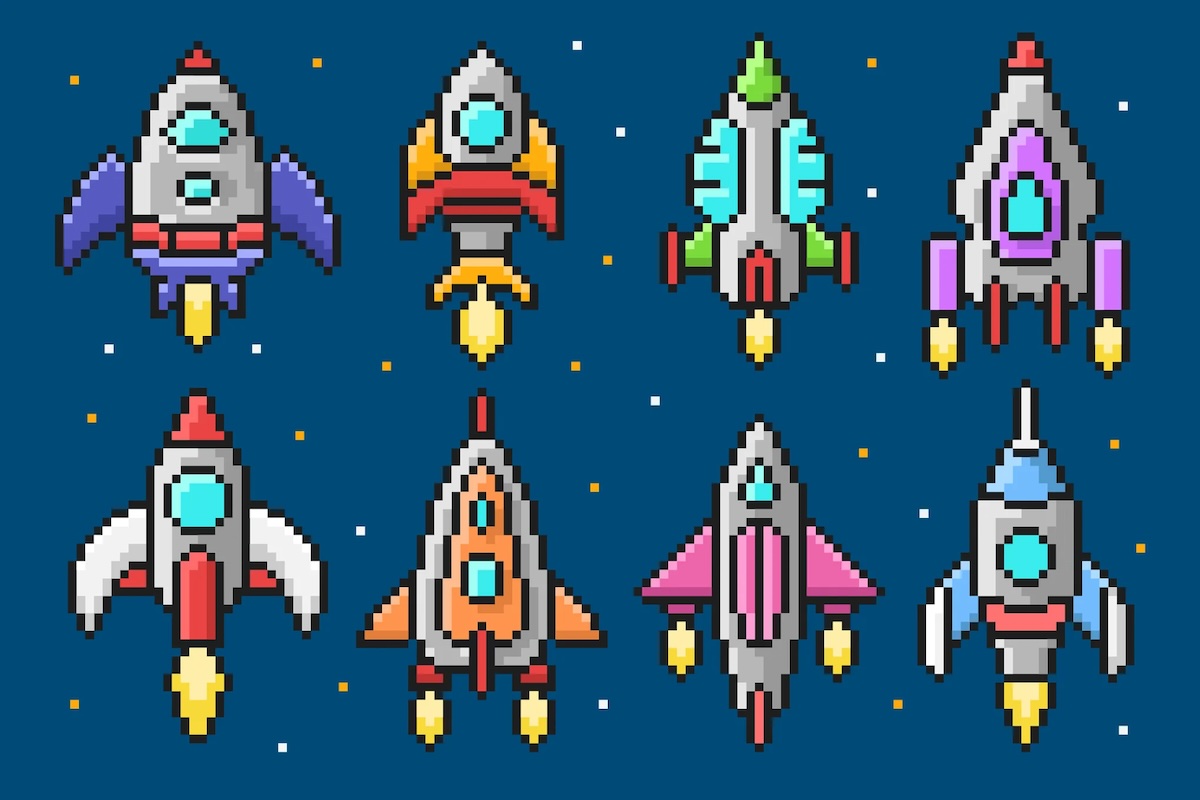
When asking an AI model to generate sprite artwork, use strict geometric constraints and high-contrast background chroma keys:
Role: Senior 16-bit Pixel Artist.
Generate a character sprite sheet:
- SUBJECT: A cyberpunk drone with glowing amber thrusters.
- VIEW: Strict 2D orthographic side profile (no perspective tilt, no 3D depth).
- RESOLUTION: 32x32 pixels per frame on a transparent or solid magenta (#ff00ff) background.
- PALETTE: Restricted to 5 colors (Charcoal #1e293b, Slate #475569, Amber #f59e0b, Pale Yellow #fef08a, White #ffffff).
- OUTLINE: 1-pixel solid dark outline.
- ANTI-ALIASING: None. Strictly hard pixel edges.
The solid magenta #ff00ff background allows an automated script to strip the background with 100% precision:
// Chroma key background removal
if (r === 255 && g === 0 && b === 255) {
  data[i + 3] = 0; // Transparent
}
4. Frame-by-Frame Sprite Animation in Pixify Studio
Once you have your base frame, avoid asking AI to generate 8 consecutive walk frames from scratch (the model will hallucinate different proportions and faces across frames).
Instead, take your quantized base frame into Pixify Studio (our free web-based pixel editor built right into ToozyMio):
- Import the 32x32 Base Frame: Place it on Layer 1.
- Duplicate to Frame 2: Keep the face and torso identical.
- Apply the 2-Pixel Bob: Shift the head down by 1 pixel, angle the thruster flame forward by 2 pixels.
- Export as Sprite Strip: Export a horizontal PNG strip (
32x128px) ready for canvas drawing.
Canvas Sprite Sheet Player Loop
class AnimatedSprite {
  constructor(image, frameWidth, frameHeight, frameCount, fps = 10) {
    this.image = image;
    this.fw = frameWidth;
    this.fh = frameHeight;
    this.frameCount = frameCount;
    this.fps = fps;
    this.currentFrame = 0;
    this.timer = 0;
  }

  update(dt) {
    this.timer += dt;
    if (this.timer >= 1 / this.fps) {
      this.timer = 0;
      this.currentFrame = (this.currentFrame + 1) % this.frameCount;
    }
  }

  draw(ctx, x, y) {
    ctx.drawImage(
      this.image,
      this.currentFrame * this.fw, 0, this.fw, this.fh,
      Math.floor(x), Math.floor(y), this.fw, this.fh
    );
  }
}
Conclusion: Craftsmanship Meets Speed
AI doesn't eliminate the need for taste or pixel-perfect precision; it serves as a high-speed concept engine. By clamping color palettes, enforcing strict grid resolutions, and polishing animation frames in dedicated tools, you can build games that look deliberately authored by classic studio veterans.
Explore our interactive tools:
- Create and edit custom sprites in Pixify Studio.
- Generate cohesive retro color themes in Color Palette Generator.
- Relax with our cozy Pixel Color by Number.