
If you have ever opened a classic computer graphics textbook, you probably slammed it shut ten minutes later. Pages of Greek symbols describing 4x4 affine transformation matrices, homogeneous coordinates, Euler angle gimbal lock, and quaternion rotation physics have intimidated generations of aspiring game makers.
For years, that was the toll you had to pay to create games in 3D. 2D canvas felt approachable, but the moment you added a third axis ($Z$), the cognitive load multiplied exponentially.
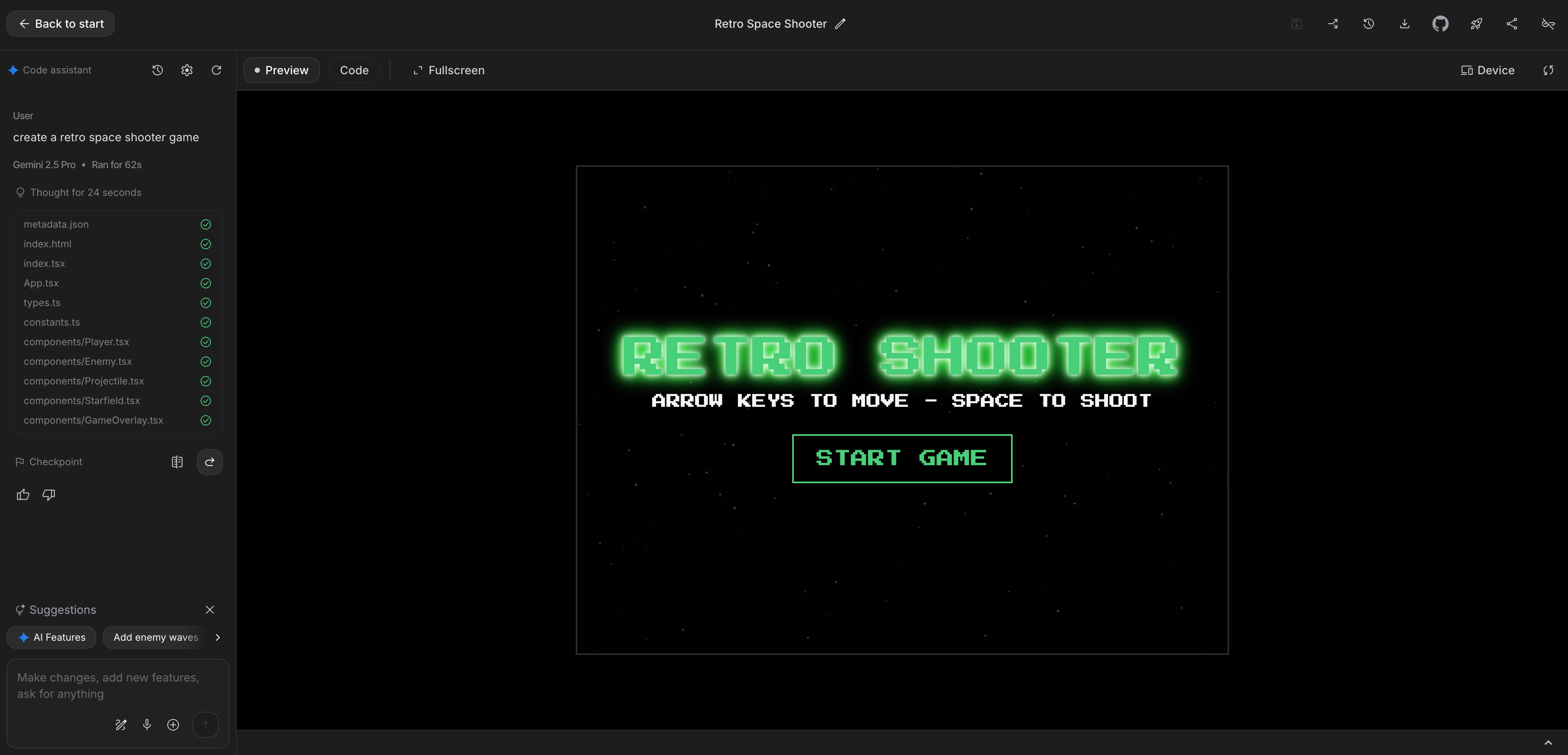
When we set out to build Cosmic Chaos—a fast-paced retro space shooter with glowing laser bursts, flying asteroid fields, and sweeping camera perspectives—we ran an experiment: What happens if we forbid ourselves from doing 3D trigonometry and instead direct the scene entirely through AI prompt engineering?
Here is the exact studio breakdown of how we directed Three.js into a high-performance 60 FPS browser game.
1. Setting Up the Three.js Canvas Scaffold
The easiest trap in 3D WebGL is setting up broken lights and cameras where everything renders pitch black. To prevent this, our initial scaffold prompt gave the AI a bulletproof blueprint:
Act as a Three.js expert. Scaffold an HTML5 3D space scene:
- Set up PerspectiveCamera with FOV 60, near 0.1, far 1000, positioned at [0, 0, 45].
- Create a WebGLRenderer with antialias: true, alpha: false, and ACESFilmicToneMapping.
- Add an AmbientLight (#1e293b, intensity 1.2) for subtle fill lighting.
- Add a DirectionalLight (#38bdf8, intensity 2.5) positioned at [50, 80, 50] to simulate a distant neon star.
- Populate a starfield of 3,000 glowing particle points randomly distributed in a sphere of radius 600.
- Handle window resize gracefully by updating camera.aspect and renderer.setSize.
In under 30 seconds, we had an infinite starfield that drifted gently across the screen with proper depth scaling and cinematic lighting.
2. Generating Low-Poly Asteroids with Procedural Noise
We didn't want to open Blender, sculpt 20 separate rocks, unwrap UV maps, and export bulky 5MB GLTF files. We wanted instant in-code procedural generation.
We asked the AI:
"Write a function
createProceduralAsteroid()that creates anIcosahedronGeometry(radius, detail: 1), then randomly displaces each vertex along its normal vector by a random factor between -0.35 and +0.35. Apply a MeshStandardMaterial with rough gray shading, flatShading: true, and compute vertex normals."
The result was stunning: Every asteroid spawned into the world had unique craters, angles, and silhouettes, entirely generated on the fly by CPU vertex math that the AI wrote in 15 lines:
// Procedural asteroid vertex displacement generated by AI
function createAsteroidMesh(radius = 3.5) {
  const geo = new THREE.IcosahedronGeometry(radius, 1);
  const pos = geo.attributes.position;

  for (let i = 0; i < pos.count; i++) {
    const vx = pos.getX(i);
    const vy = pos.getY(i);
    const vz = pos.getZ(i);
    // Displace vertex along radial vector
    const displacement = 1 + (Math.random() - 0.5) * 0.45;
    pos.setXYZ(i, vx * displacement, vy * displacement, vz * displacement);
  }

  geo.computeVertexNormals();
  const mat = new THREE.MeshStandardMaterial({
    color: 0x475569,
    roughness: 0.85,
    metalness: 0.1,
    flatShading: true,
  });

  const mesh = new THREE.Mesh(geo, mat);
  mesh.rotation.set(Math.random() * Math.PI, Math.random() * Math.PI, 0);
  return mesh;
}
3. The Secret to 3D Space Controls: Banking and Screen Bounds
In 3D space, controlling a ship with the keyboard often feels floaty, detached, or disorienting. We wanted that tight, responsive arcade feel found in classic coin-op machines.
We prompted our AI with three specific design instructions:
- Ship Banking Roll: When the player steers Left or Right, rotate the ship mesh along the $Z$ axis by $-25^\circ$, using
lerpfor smooth roll recovery when keys are released. - Frustum Clamping: Keep the ship within camera boundaries so the player never flies off into the empty void.
- Thruster Particles: Attach an animated point light and particle trail to the engine exhaust.
The AI accurately calculated the camera frustum width at depth $Z=0$:
$$\text{visibleHalfWidth} = \tan\left(\frac{\text{fov} \times \pi}{360}\right) \times \text{cameraDistance} \times \text{aspectRatio}$$
// Clamping ship to camera frustum dynamically
function updatePlayerBounds(player, camera) {
  const vFOV = THREE.MathUtils.degToRad(camera.fov);
  const visibleHeight = 2 * Math.tan(vFOV / 2) * camera.position.z;
  const visibleWidth = visibleHeight * camera.aspect;

  const halfW = visibleWidth / 2 - 2.5;
  const halfH = visibleHeight / 2 - 2.5;

  player.position.x = THREE.MathUtils.clamp(player.position.x, -halfW, halfW);
  player.position.y = THREE.MathUtils.clamp(player.position.y, -halfH, halfH);
}
We never had to search StackOverflow for the frustum trigonometry formula; the AI implemented the screen edge clamp automatically on the first pass.
4. Performance Optimization: InstancedMesh for 100+ Lasers
Early in development, when the player collected a triple-shot powerup and held down the spacebar, the framerate dipped from 60 FPS down to 34 FPS on laptops.
Opening Chrome DevTools revealed the culprit: Every laser bolt was an independent THREE.Mesh with its own draw call. When 80 lasers and 40 asteroids were active simultaneously, the GPU choked on CPU draw call overhead.
We copied the render loop into our AI prompt:
"The frame rate drops when 80 laser bolts are on screen due to draw call overhead. Refactor our laser pool to use Three.js
InstancedMeshwith dynamic matrix updates. Provide a complete, drop-in class."
The AI returned a single InstancedMesh(cylinderGeometry, laserMaterial, 200) and updated the transform matrices on each frame. Draw calls plummeted from 120+ down to 2, and the game locked back to a silky 60 FPS on mobile!
class LaserSystem {
  constructor(scene, maxLasers = 200) {
    this.maxLasers = maxLasers;
    this.activeCount = 0;
    this.geometry = new THREE.CylinderGeometry(0.15, 0.15, 2.5, 6);
    this.geometry.rotateX(Math.PI / 2); // Orient forward
    this.material = new THREE.MeshBasicMaterial({ color: 0x38bdf8 });
    this.instancedMesh = new THREE.InstancedMesh(this.geometry, this.material, maxLasers);
    this.instancedMesh.instanceMatrix.setUsage(THREE.DynamicDrawUsage);
    scene.add(this.instancedMesh);

    this.lasers = [];
    this.dummy = new THREE.Object3D();
  }

  spawn(x, y, z) {
    if (this.lasers.length >= this.maxLasers) return;
    this.lasers.push({ x, y, z, speed: 65, active: true });
  }

  update(dt) {
    for (let i = this.lasers.length - 1; i >= 0; i--) {
      const l = this.lasers[i];
      l.z -= l.speed * dt;
      if (l.z < -100) {
        this.lasers.splice(i, 1);
        continue;
      }
      this.dummy.position.set(l.x, l.y, l.z);
      this.dummy.updateMatrix();
      this.instancedMesh.setMatrixAt(i, this.dummy.matrix);
    }
    this.instancedMesh.count = this.lasers.length;
    this.instancedMesh.instanceMatrix.needsUpdate = true;
  }
}
5. What This Means for Solo Creators
You do not need a 10-person art department or a physics PhD to create vibrant 3D arcade worlds. By asking for procedural geometry, dynamic materials, and instanced meshes through directed prompts, 3D becomes as accessible as 2D.
If you have a 3D vision, do not let the math intimidate you. Describe the world, let the AI calculate the vertices, and tweak until the vibe feels right.
Play Cosmic Chaos directly in your browser on ToozyMio to test the finished game loop, and check our global Leaderboard to see where you rank!